Tested on the developer’s phone
How to remap the Snap Key on OPPO phones
The Snap Key is the extra key on the left edge of recent OPPO Find X phones. KeySnap can give it shortcuts of your own, such as the flashlight, the camera or a screenshot. We have tested it on an OPPO Find X9 Pro.
What the Snap Key does by default
OPPO describes the Snap Key as a capture key: “Press the Snap Key to capture anything, from text, images, and voice memos to documents”, which then lands in AI Mind Space (OPPO India, AI Mind Space). A review of the Find X9 Pro describes the Mind Space setting as three patterns: a single press captures the screen, press and hold records a voice note, and a double press opens Mind Space (The Mobile Indian).
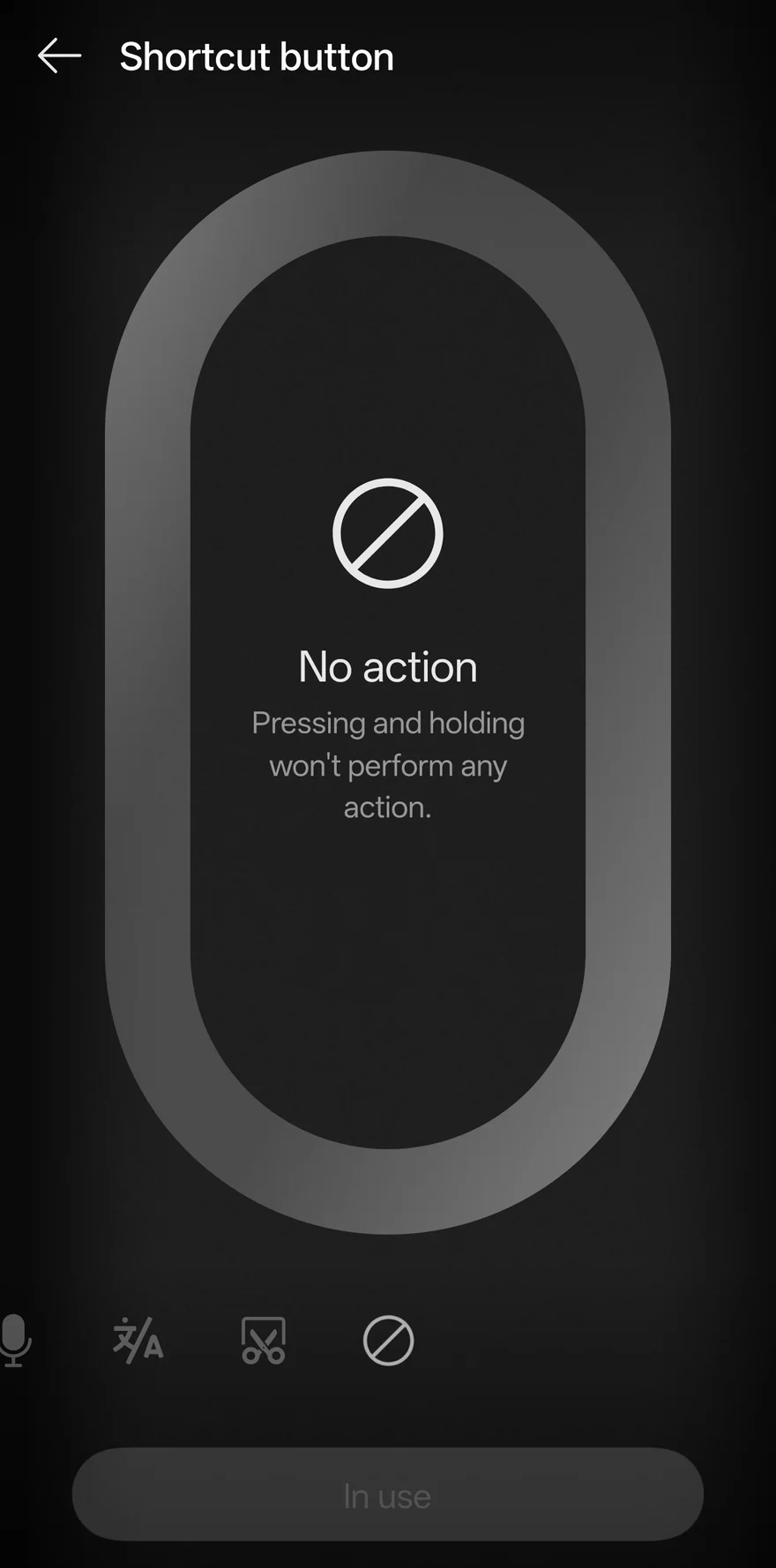
In your phone’s settings you can switch the key to another function. OPPO lists launching the camera, the recorder or translate, switching modes, taking a screenshot, turning on the torch, or leaving the key alone (OPPO Find X9 Pro page). OPPO’s community guide calls that last choice No Action (OPPO Community).
How to remap the Snap Key with KeySnap
- Install KeySnap and finish the setup on HomeOpen KeySnap and follow the three setup steps on Home. They start with turning on the Accessibility service, which is how Android lets an app notice a hardware key.
- Set the Snap Key to No ActionOpen your phone’s Settings and find Snap Key, then choose No Action. The name and place of the setting can differ between ColorOS versions. With the key set to nothing, only KeySnap reacts to it. KeySnap shows the same tip when you save a manufacturer key.
- Turn on Advanced ModeOn our OPPO Find X9 Pro the Snap Key is read through Advanced Mode. Open Settings > Setup tools in KeySnap and follow Turn on Advanced Mode. It pairs with your phone’s own Wireless Debugging, needs Wi-Fi and Developer options, and does not need root.
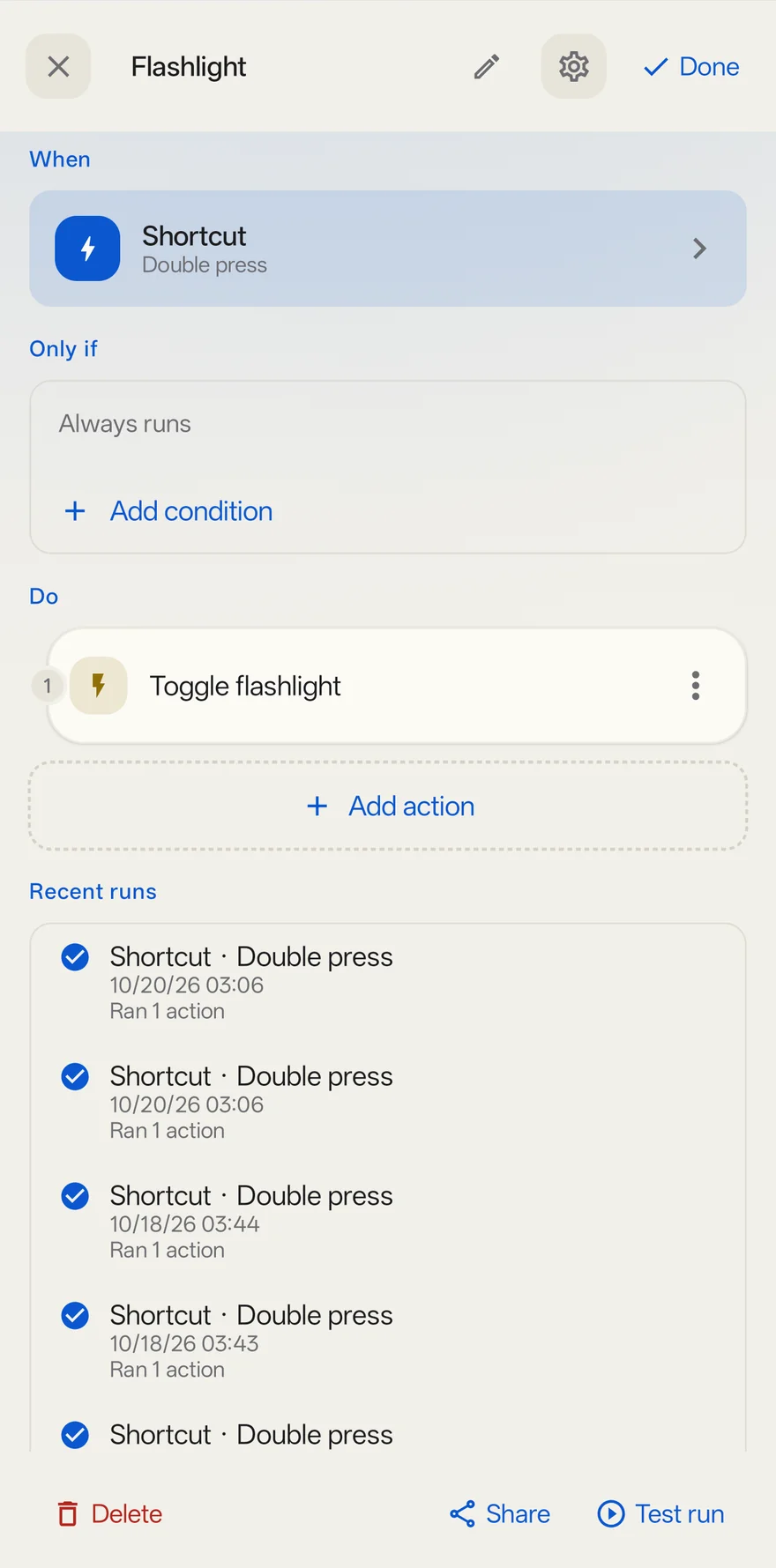
- Create the shortcutTap New shortcut, then in When choose Key press. Pick a press pattern: Single press, Double press or Long press.
- Detect the Snap KeyTap to record, then press the Snap Key. KeySnap shows Listening… and then Key recorded. Tap Save key. If nothing is recorded, KeySnap does not see the key on your phone yet. Check that Advanced Mode is running, then try again.
- Choose what it doesUnder Do, tap Add action, search the catalogue and pick one, for example Flashlight. Tap the check mark at the top right to finish, then press the key to try it. You can add another shortcut with a different press pattern on the same key.
Tested on the developer’s phone
We use an OPPO Find X9 Pro (China model, ColorOS 16, Android 16) with the Snap Key set to No Action in the system settings, where this ColorOS version calls it Shortcut button. The phone reports the key only as a raw hardware event that Android does not pass to apps, so KeySnap reads it through Advanced Mode. KeySnap then runs the shortcuts attached to it, and nothing else on the phone reacts to the key. We last checked this on 23 October 2026.
That result is for one phone and one software version. Other Find X models and other ColorOS versions may behave differently, so record the key in KeySnap to see whether it shows up on yours.
Limits to know about
Support varies by phone and Android version, and only keys that KeySnap detects can be remapped.
- KeySnap can only use a key it detects. If the Snap Key does not register when you record it, KeySnap cannot remap it on your phone.
- If the key is still set to an OPPO function, that function may run as well as your shortcut. Setting it to No Action avoids that.
- The Snap Key is a different key from the camera key on the Find X9 series. This guide is only about the Snap Key.
- Advanced Mode needs Wi-Fi and Developer options for setup. After you restart the phone, open KeySnap again to bring it back.
- Support, press types and actions vary by phone and system version.
Other phones and keys
See the overview of special keys for how detection works, or read the guide for another key:
Try the Snap Key with KeySnap.
KeySnap is free to install from Google Play. The listing notes that it contains ads and offers in-app purchases.
KeySnap is an independent app by Arda Şen. It is not affiliated with, endorsed by or sponsored by OPPO. Product names are used only to say which phones and keys this guide is about.